
Updated for 2026
Note: LinkedIn frequently updates its interface and features. While the core concepts in this guide remain valid, specific button locations and filter options may vary. Always check LinkedIn’s current interface for the most up-to-date experience.
When you’re preparing for a sales call or trying to break into a new account, one question matters more than any other: Who do I already know who can help me get in the door?
LinkedIn makes this possible by showing you not just your own network, but the networks of everyone you’re connected to. The problem? Most active LinkedIn users have hundreds or thousands of connections. How do you efficiently search through all those contacts to find the right warm introduction?
This is where LinkedIn’s connection filtering becomes a B2B sales team’s best friend.
Why Sales Teams Need Connection Filtering
Let’s say you’re a sales rep preparing for a meeting with a prospect at a major manufacturing company. Before you make that cold call, wouldn’t you rather know if:
- Your colleague in another territory knows the decision-maker?
- Someone in your network worked at that company previously?
- You can get a warm introduction to the CFO through a mutual connection?
Connection filtering lets you answer these questions in minutes instead of hours. Even better, it helps your entire sales team coordinate outreach and avoid the embarrassment of multiple people from your company contacting the same prospect.
The Core Technique: Viewing & Filtering Connections
LinkedIn’s connection filtering has evolved over the years, with the interface changing but the core functionality remaining available. Here’s how it works (as of this writing in 2026):
Step 1: Access Your Connection’s Network
Start by visiting the profile of one of your first-degree connections. Below their profile picture, you’ll see their connection count (e.g., “500+ connections” or a specific number). Click on this number to view their connections.
Important note: If your connection has changed their settings to hide their connections, you won’t be able to do this. However, most people don’t hide their connections, so this works the majority of the time. You can always see mutual connections even if someone has hidden their full list.
Step 2: Apply Filters to Narrow Your Search
Once you’re viewing their connections, you’ll see a search results page. Look for the “All filters” button (usually near the top or side of the page) to access the full filtering options.

With a free LinkedIn account, you can filter by:
- Connections (1st, 2nd, 3rd degree)
- Location
- Current Company
- Past Company
- Industry
- School
- Profile Language
- Keyword (searches titles, headlines, etc.)
With LinkedIn Sales Navigator (Premium), you get 30+ additional filters, including:
- Seniority Level (CxO, VP, Director, Manager, etc.)
- Function (Sales, Finance, Engineering, Operations, etc.)
- Years in Current Position
- Years at Current Company
- Company Size (by employee count)
- Company Revenue
- Company Headcount Growth
- Technology Used (tech stack filters)
- Groups
- Spotlight Filters (2026 feature):
- Changed jobs in last 90 days
- Posted on LinkedIn in last 30 days
- Mentioned in the news
- Hiring on LinkedIn
- AI-Powered Features (Advanced & Advanced Plus):
- Account IQ: AI-generated company summaries and account plans
- Lead IQ: Aggregated buyer intelligence and engagement recommendations
Step 3: The “2nd Connections” Filter – A Critical Strategy
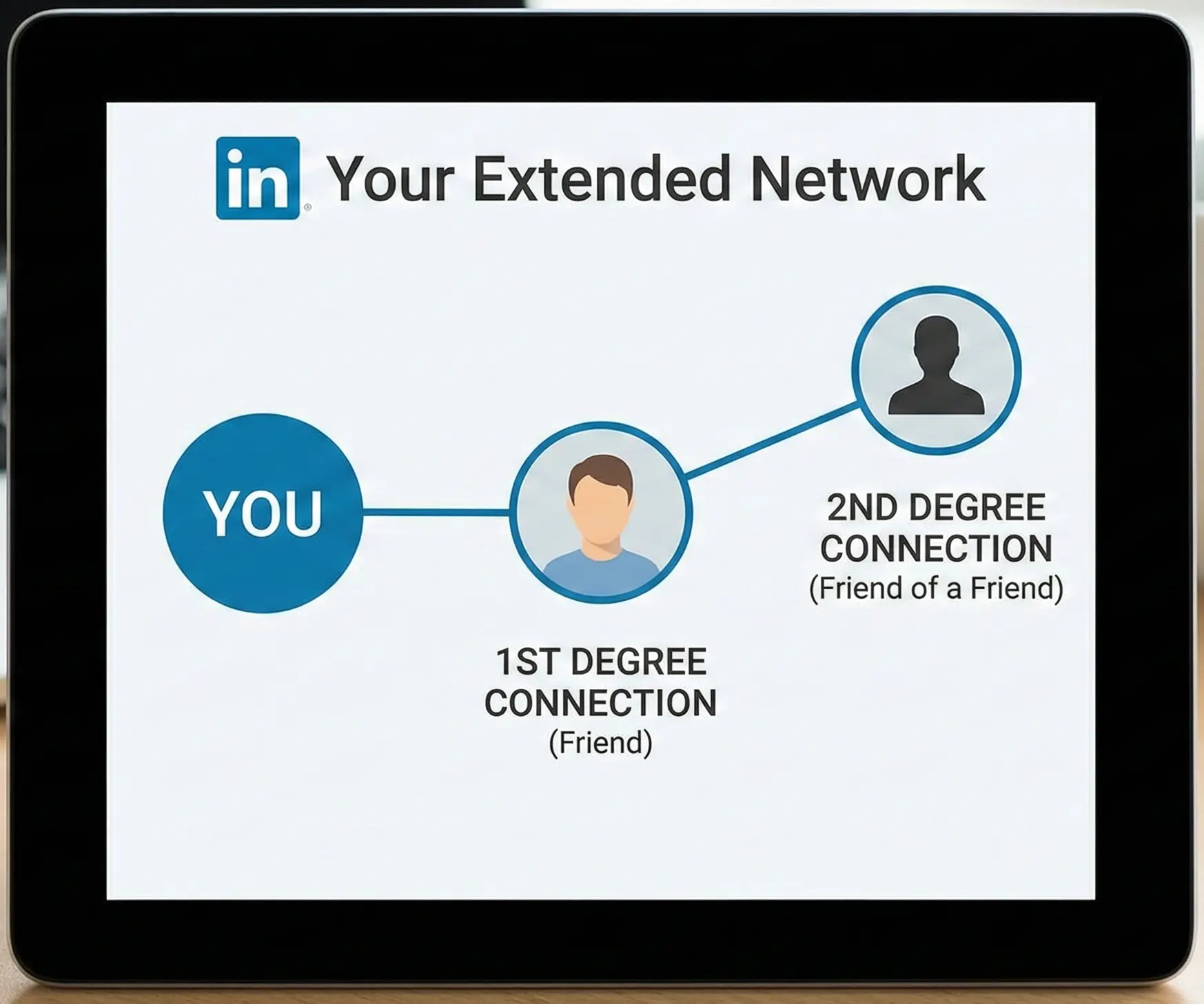
Here’s a filtering technique that confuses people at first but becomes invaluable once you understand it:
When viewing your connection’s network, select “2nd connections” in the connections filter.
This removes people from the list who are already your 1st-degree connections. Why does this matter? Because you don’t need an introduction to people you already know. The “2nd Connections” filter shows you only the people who are:
- Connected to your colleague/connection
- NOT yet connected to you
- Perfect candidates for warm introductions
How this works technically: The “connections” filter refers to YOUR connection degree, not the person whose network you’re viewing. So “2nd connections” means “show me people who are 2nd-degree connections TO ME” – which means they’re 1st-degree to your connection but not yet connected to you.
Alternative Method: Using LinkedIn’s Integrated Search
You can also get to someone’s connection list through LinkedIn’s main search interface:
- Click the search box at the top of LinkedIn
- Enter what you’re searching for (or search for “People”)
- Click “All filters” to open the advanced filtering panel
- In “Connections of,” start typing the name of your 1st-degree connection
- Select them from the dropdown (it will only show your 1st-degree connections)
- Select “2nd-degree connections” to filter out people you already know
- Apply additional filters (location, title, company, industry, etc.)
- Click “Show results.”
This approach is especially useful when you’re researching multiple people’s networks and want to keep everything in the search interface.
Note: The interface has evolved over the years – there’s no longer a separate “Advanced Search” button. All advanced filtering is now integrated into the main search through the “All filters” option.
Real-World Sales Scenario
Let me walk you through a practical example:
Let’s say I’m meeting with my connection Dan Stalp. Dan has close to 1,000 connections. The purpose of our meeting is to identify introductions that can help each of us grow our businesses.
Instead of spending our entire meeting with Dan trying to remember who he knows, I can prepare in advance:
- I go to Dan’s profile and click on his “500+ connections” link
- I click “All filters” to access filtering options
- I select “2nd-degree connections” (to exclude people I already know)
- I filter by industry: “Management Consulting.”
- I filter by keyword: “CEO” (to find people with CEO in their title)
- I apply the filters
Result: Instead of 1,000 connections, I now have a targeted list of 8 people who fit my ideal prospect criteria.
Now, when I meet with Dan, I can say: “Dan, I see you’re connected to Dave Anderson, who’s a CEO in management consulting. Can you tell me about your relationship with him? Would you be comfortable introducing me?”
This is infinitely more effective than asking “Do you know anyone who needs what I do?”
How Sales Teams Should Use Connection Filtering
Now let’s expand this from individual networking to full sales team coordination:
1. Pre-Call Research Process
Before any sales call, especially with target accounts, your sales reps should:
a) Search the target company on LinkedIn
- Identify key decision-makers and influencers
- Note their backgrounds, previous companies, and schools
b) Check your team’s collective network
- Have each sales rep search their own connections for people at the target company
- Check if anyone on the team has 2nd-degree connections to decision-makers
- Document who knows whom
c) Look for past employees
- Filter by “Past Company” to find people who used to work there
- These former employees can provide valuable intelligence about company culture, buying processes, and key players
Important: Be strategic and measured in your outreach. In 2026, LinkedIn’s algorithm tracks connection request patterns and can penalize accounts that send too many requests with low acceptance rates (see the “2026 LinkedIn Changes” section below for details).
2. Finding Warm Introductions
The best sales meetings start with warm introductions. Here’s your process:
Step 1: Identify the Decision-Maker Example: Sarah Johnson, VP of Operations at Acme Manufacturing
Step 2: Search Your Network
- Go to LinkedIn search > People
- Enter Sarah’s name
- Look at “How you’re connected” – does it show any mutual connections?
Step 3: Check Each Mutual Connection. If you have 3 mutual connections, click through to each one and ask yourself:
- How well do I know this person?
- How well do they know Sarah? (Check if they worked together, went to school together, etc.)
- Would they be willing to make an introduction?
Step 4: Filter Their Full Network. Click on your mutual connection’s network and filter by:
- Company: Acme Manufacturing
- Connection level: 2nd degree
This shows you everyone at Acme that your connection knows and you don’t – perfect for requesting multiple introductions if appropriate.
3. Team Coordination & Avoiding Duplicate Outreach
Nothing damages your company’s credibility faster than having multiple sales reps reach out to the same prospect. Here’s how to prevent it:
Create a Shared Prospect Research Document
For major target accounts, maintain a shared document (Google Sheet, CRM notes, etc.) that tracks:
- Company name
- Key decision-makers
- Who on your team has connections
- Status of any outreach (who reached out, when, outcome)
- Warm introduction paths identified
Example format:
| Target Company | Decision-Maker | Sales Rep | Connection Path | Status | Date |
|---|---|---|---|---|---|
| Acme Mfg | Sarah Johnson, VP Ops | Mike | Mike → Dan Stout → Sarah | Intro requested | 2/12/26 |
| Acme Mfg | Tom Chen, CFO | Lisa | Lisa → Jennifer Kim → Tom | Meeting scheduled | 2/10/26 |
Communication Protocol
Establish clear rules:
- Before reaching out to anyone at a target account, check the shared document
- If someone else is already working a connection path, coordinate with them
- Update the document immediately after any outreach
Sales Navigator TeamLink Feature
If your team has Sales Navigator Advanced or Advanced Plus, you can use TeamLink to see the combined 2nd and 3rd-degree networks of your entire sales team. This reveals warm paths through your collective network without manually checking each person’s connections.
TeamLink shows you:
- Who on your team knows someone at the target company
- How strong those connections are
- The best path to request an introduction
This is particularly powerful for enterprise sales teams where leveraging the entire company’s network is critical.
4. Using Connection Data for Account-Based Marketing (ABM)
For enterprise sales teams running ABM campaigns, connection filtering helps you:
Map the buying committee:
- Use filters to identify all VPs, Directors, and Managers at the target company
- Document reporting relationships (visible on LinkedIn profiles)
- Find 2nd-degree connections to each committee member
Personalize your approach:
- Check mutual connections’ activity feed to see recent interactions with your targets
- Look for shared interests, groups, or background (same school, previous employer)
- Reference these in your outreach for higher response rates
Multi-threading your outreach:
- Identify 3-5 people in the buying process
- Find the best connection path to each
- Coordinate simultaneous warm introductions across multiple stakeholders
Use AI-powered insights (Sales Navigator Advanced+):
- Account IQ provides instant company research and shows what’s top-of-mind for the account
- Lead IQ aggregates everything you need to know about a buyer and recommends how to engage
- These features dramatically reduce pre-call research time
Advanced Filtering Strategies for Sales Teams
Strategy 1: The “Past Company” Play
When trying to break into a company, search your network for people who USED to work there:
- Go to People search > All filters
- Enter “Past Company” = [Target Company Name]
- Filter by 1st or 2nd degree connections
Former employees are goldmines because they:
- Understand internal politics and decision-making processes
- Often still have friends at the company who will take their call
- Can provide intelligence about budget cycles, pain points, and initiatives
- May have left on good terms and be willing to make introductions
Strategy 2: The “Same School” Angle
People who went to the same university often help each other. Use this:
- Find your target decision-maker’s profile
- Note which university they attended
- Search your own network: All filters > School > [Their University]
- Filter by 1st or 2nd degree connections
- Look for people who might know your target or can relate to them
When reaching out, you can mention: “I noticed we both have connections from [University]. I’m working with several [University] alumni in the [Industry] space…”
Strategy 3: The “Title Match” Research
When preparing for a discovery call with a VP of Sales, search for other VPs of Sales in your network:
- People search > All filters
- Title: “VP Sales” or “Vice President of Sales”
- Industry: [Same as your target’s industry]
- Connection level: 1st degree
Why? Because you can:
- Prepare better questions based on common challenges VPs of Sales face
- Reference (anonymously) what other sales leaders are doing
- Build credibility by demonstrating industry knowledge
Strategy 4: The “Company Size” Qualifier (Premium only)
If you sell to mid-market companies (50-500 employees), filter aggressively:
- Use Sales Navigator
- Apply Company Size filter
- Combine with seniority level and function
- Save this as a recurring search
This ensures you’re not wasting time on connections at companies too small or too large for your solution.
Strategy 5: The “Spotlight” Signals (Sales Navigator 2026)
LinkedIn’s newest filters reveal buying intent:
“Changed jobs in the last 90 days”
- New decision-makers are evaluating vendors
- They haven’t established vendor relationships yet
- Perfect timing for new introductions
“Posted on LinkedIn in the last 30 days.“
- Active users are more likely to respond
- Shows they’re engaged with the platform
- Avoid “zombie accounts” that hurt acceptance rates
“Hiring on LinkedIn”
- Growing companies need solutions
- Budget is available
- Urgency exists
“Mentioned in the news”
- Recent funding rounds, mergers, leadership changes
- Contextual conversation starters
- Demonstrated momentum
2026 LinkedIn Changes: What Sales Teams Need to Know
LinkedIn has significantly evolved its algorithm and enforcement in 2026. Here’s what you need to know:
The “Volume Tax” – Quality Over Quantity
The Data: Sales reps who send fewer than 25 connection requests per week achieve acceptance rates of 40% or higher – nearly 2x better than high-volume senders.
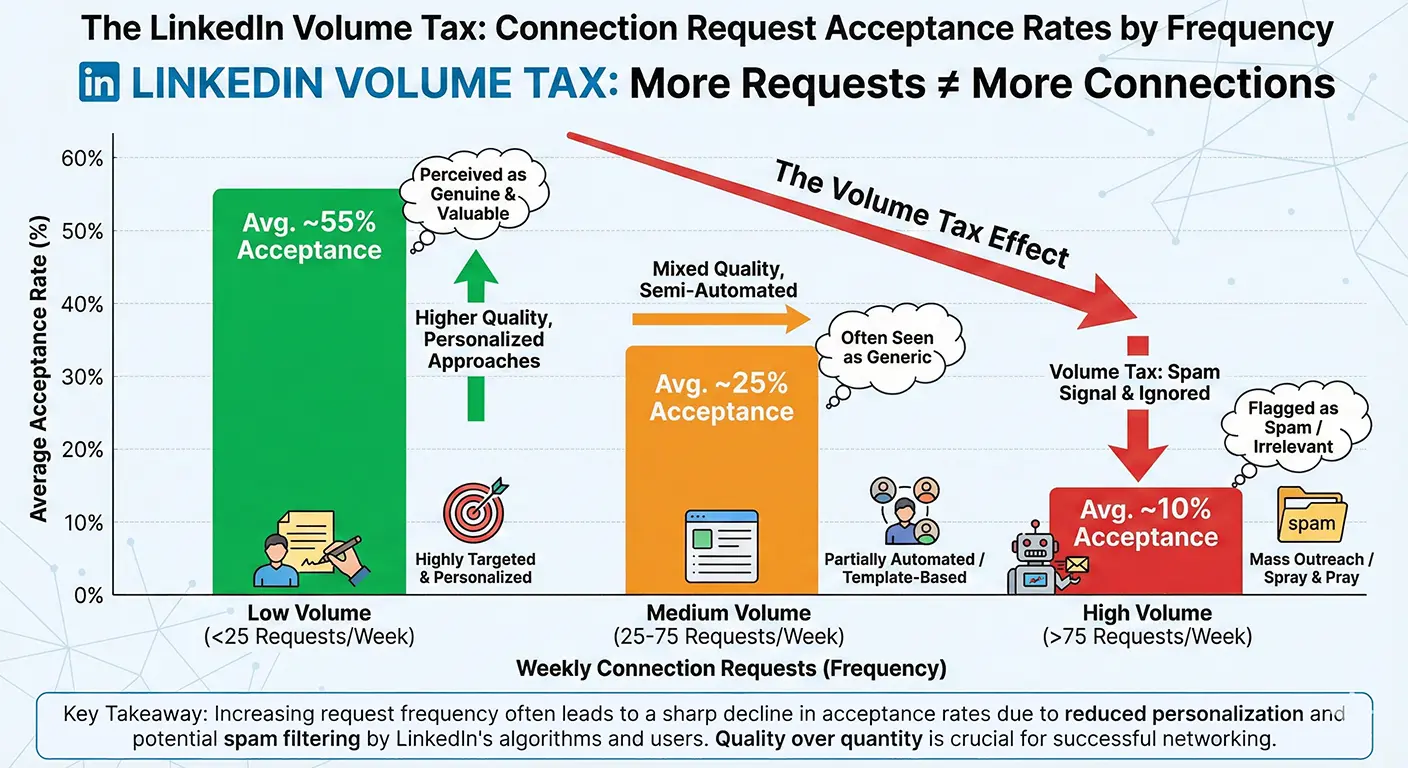
What’s happening: LinkedIn’s algorithm detects and penalizes bulk behavior. When you send 100+ requests per week with low acceptance rates, the platform:
- Categorizes you as a spammer
- Reduces the visibility of your future requests
- Moves your messages to the “Other” folder instead of “Primary.” I’ve heard some people equate this to the Gmail “Promotions” folder, but to me it is far worse because many LinkedIn users don’t know the “Other” folder exists.
- Lowers your “Account Health Score”
What to do instead:
- Send 15-25 highly targeted requests per week
- Personalize every connection request
- Use Sales Navigator’s “Posted in last 30 days” filter to target active users
- Withdraw pending requests after 14 days if not accepted
Commercial Use Limits on Free Accounts
Free LinkedIn accounts now have stricter limits on commercial prospecting:
- Approximately 1,000 profile views per month
- ~300 commercial searches per month
- Profile viewing restrictions if you exceed limits
Solution: Sales Navigator removes these restrictions entirely. If your team is doing serious prospecting, the paid subscription quickly pays for itself by avoiding these blocks.
Automation Tool Warnings
LinkedIn has improved its detection of automation tools in 2026:
- Browser extensions that inject code into LinkedIn’s interface are easily detected
- Rapid-fire actions (100 profile views in 20 minutes) trigger flags
- Engagement pods are now detected and suppressed
Safe approach:
- Use only LinkedIn-approved integrations
- Avoid automation tools that promise to “game the system.”
- Focus on manual, thoughtful outreach
- If you must automate, use cloud-based tools with “human behavior modeling” and stay well below platform limits
Account Health Scoring
LinkedIn now assigns each user a dynamic “Account Health Score” that determines your specific limits on any given day. This score is based on:
- Connection request acceptance rate
- Response rates to your messages
- Profile completeness
- Engagement with your content
- Reports or blocks against your account
Keep your score high by:
- Only connecting with people you actually want to build relationships with
- Engaging authentically (thoughtful comments, not just likes)
- Maintaining a complete, professional profile
- Never using misleading tactics or spam
Building Your Personal Connection Research Workflow
Here’s a recommended weekly routine for sales reps:
Monday Morning (15 minutes):
- Review your week’s scheduled calls and meetings
- For each target account, spend 5 minutes searching connections
- Document any warm introduction opportunities in your CRM
Wednesday (30 minutes):
- Review your pipeline’s “stuck” deals
- Search for connections at those companies you haven’t leveraged yet
- Send 2-3 introduction requests to your network (stay within weekly limits)
Friday (20 minutes):
- Look at next week’s target account list
- Filter through your best-connected colleagues’ networks (with permission)
- Schedule time with them to discuss potential introductions
Monthly (1 hour):
- Update your shared team tracking document
- Review which connection strategies worked best
- Refine your filtering criteria based on results
Common Mistakes to Avoid
Mistake 1: Only searching your own connections
Your colleagues might have the perfect connection. Check their networks too (with permission). If your company has Sales Navigator TeamLink, use it to see your entire team’s collective network.
Mistake 2: Not filtering for 2nd-degree connections
You waste time looking at people you already know. Always filter for 2nd-degree to find introduction opportunities.
Mistake 3: Asking for introductions too broadly
Don’t ask “Can you introduce me to anyone at Microsoft?” Instead: “I see you’re connected to Jennifer Chen, the Director of IT Operations at Microsoft. Do you know her well enough to make an introduction?”
Mistake 4: Forgetting to check “Past Company”
Former employees are often your best source of intelligence and introductions, but people forget to use this filter.
Mistake 5: Not documenting your research
If you don’t record connection paths in your CRM, you’ll forget them. And your team won’t know what you’ve already discovered.
Mistake 6: Sending too many connection requests (2026 specific)
With LinkedIn’s new volume penalties, sending 50-100+ requests per week can actually hurt your results. Focus on 15-25 high-quality, personalized requests instead.
Mistake 7: Targeting inactive accounts
Use the “Posted in last 30 days” filter (Sales Navigator) to avoid sending requests to people who haven’t logged in for months. Pending requests that sit unaccepted hurt your account health score.
Making This Work with Free vs. Premium LinkedIn
What you CAN do with a free account:
- View all 1st-degree connections’ networks (if they haven’t hidden them)
- Filter by company, location, industry, past company, school, keywords
- Research individual target companies effectively
- Find warm introduction paths for most prospects
- Access basic people search with core filters
Limitations of free accounts (2026):
- ~1,000 profile views per month (commercial use limit)
- ~300 commercial searches per month
- Limited to 1,000 search results per query
- No seniority level or function filters
- No spotlight filters (job changes, posting activity, etc.)
- No AI-powered research tools
What Sales Navigator adds:
Core Plan ($99.99/month):
- Unlimited searches
- 30+ advanced filters (seniority, function, company size, etc.)
- Save up to 10,000 leads
- 50 InMail credits per month (accumulate up to 150)
- Lead recommendations
- Custom lists and alerts
- Account Map
Advanced Plan ($149/month):
- Everything in Core
- TeamLink (see team’s combined network)
- Smart Links (track content engagement)
- CRM integration basics
- SSO and enterprise tools
- CSV account list uploads
Advanced Plus (Custom pricing, ~$1,600/seat/year):
- Everything in Advanced
- Full CRM integration (Salesforce, HubSpot, Dynamics)
- Account IQ (AI-powered company research)
- Lead IQ (AI-powered buyer intelligence)
- Buyer Intent signals
- Advanced ROI reporting
For most B2B sales teams:
Start with free accounts and the techniques in this post. Once your team is consistently using connection filtering and needs:
- To bypass commercial use limits
- Advanced filters (seniority, function, company size)
- The ability to save and track leads systematically
- AI-powered research to reduce prep time
…then Sales Navigator becomes worth the investment.
ROI consideration: If finding one qualified meeting per month through better connection filtering closes deals 20% faster, Sales Navigator pays for itself. LinkedIn’s internal data shows users with Sales Navigator generate 42% larger deals and 17% more pipeline.
| FREE ACCOUNT | SALES NAVIGATOR |
|---|---|
| ✓ Location | ✓ Location |
| ✓ Industry | ✓ Industry |
| ✓ Company | ✓ Company |
| ✗ Seniority Level | ✓ Seniority Level |
| ✗ Function | ✓ Function |
| ✗ Spotlight Filters | ✓ Spotlight Filters |
| ✗ AI-Powered Tools | ✓ AI-Powered Tools |
FAQs
u003cstrongu003eQ: Can I see someone’s LinkedIn connections if I’m not connected to them?u003c/strongu003e
A: Only if they’re a 1st-degree connection AND they haven’t hidden their connections. You can always see mutual connections even if someone has hidden their full list.
u003cstrongu003eQ: How many LinkedIn connection requests should I send per week in 2026?u003c/strongu003e
A: LinkedIn’s algorithm rewards quality over quantity. Send 15-25 highly personalized requests per week for best acceptance rates. Sending 100+ requests per week can trigger penalties.
u003cstrongu003eQ: What does u00222nd-degree connectionsu0022 mean in LinkedIn filters?u003c/strongu003e
A: 2nd-degree connections are people connected to your connections, but not yet connected to you. When filtering someone’s network, selecting u00222nd connectionsu0022 shows only people you DON’T already know – perfect for finding new introduction opportunities.
u003cstrongu003eQ: Is Sales Navigator worth it for sales teams?u003c/strongu003e
A: If you’re hitting commercial use limits (1,000 profile views/month on free accounts) or need advanced filters like seniority level and function, Sales Navigator pays for itself quickly. LinkedIn data shows users generate 42% larger deals with the tool.
u003cstrongu003eQ: Why can’t I find the u0022Advanced Searchu0022 button on LinkedIn anymore?u003c/strongu003e
A: LinkedIn integrated advanced search into the main search interface. Now you search for anything, then click u0022All filtersu0022 to access the advanced filtering options. The functionality still exists, just in a different location.
u003cstrongu003eQ: How do I filter someone’s connections by location or company?u003c/strongu003e
A: Go to their profile, click their connection count, then click u0022All filters.u0022 From there you can filter by location, current company, past company, industry, and more. Select u00222nd degreeu0022 to see only people you’re not yet connected to.
u003cstrongu003eQ: Can my team see my LinkedIn connections without asking me?u003c/strongu003e
A: With Sales Navigator’s TeamLink feature (Advanced u0026amp; Advanced Plus plans), team members can see pathways through the collective team network without accessing individual connection lists directly.
u003cstrongu003eQ: What happens if I withdraw a pending connection request?u003c/strongu003e
A: Nothing negative – in fact, it’s recommended. Withdrawing requests that haven’t been accepted after 14 days helps maintain your account health score. Too many pending requests signals low-quality outreach to LinkedIn’s algorithm.
Conclusion: Network Visibility as a Competitive Advantage
The sales teams that win today are the ones that turn LinkedIn from a social network into a systematic prospecting and intelligence tool.
Connection filtering isn’t about “networking” in the traditional sense – it’s about:
- Reducing sales cycle length through warm introductions
- Increasing win rates by finding the right internal champions
- Improving team coordination so you don’t step on each other’s toes
- Conducting better discovery because you researched the company and stakeholders in advance
- Operating within platform limits by being strategic rather than spammy (critical in 2026)
Most sales reps never take the time to filter through their connections before a call. They just dial the phone and hope for the best.
You now know better.
The next time you’re preparing for a sales call, don’t ask yourself, “How do I pitch this prospect?” Ask yourself, “Who do I know who can introduce me to this prospect?”
The answer is in your LinkedIn network. You just need to filter your way to it.
Summary: Quick Reference Guide
To view someone’s connections:
- Go to their profile
- Click their connection count
- Click “All filters” to access filtering options
Essential filters to use:
- Connection level: 2nd degree (shows people you don’t know yet)
- Company: Current or Past
- Location: Where your prospects are
- Keywords: Job titles, roles, expertise
Best practices for 2026:
- Send 15-25 connection requests per week maximum
- Personalize every request
- Use “Posted in last 30 days” filter to target active users
- Withdraw pending requests after 14 days
- Document all connection paths in your CRM
- Coordinate with your team to avoid duplicate outreach
When to upgrade to Sales Navigator:
- You’re hitting commercial use limits
- You need seniority level or function filters
- Your team needs to coordinate through TeamLink
- AI-powered research tools would save significant time
Last updated: February 2026. LinkedIn’s interface and features are updated regularly. The core techniques described here remain valid, but specific menu locations and filter options may change over time.